What makes the best free photo editor?
When evaluating and testing photo editing apps, we focus on making sure they stand up to real-world use. Our team spends a lot of time—often hours—researching, testing, and using each app like a regular user would. We don’t get paid for recommendations, so we can offer unbiased insights on what works best. If you’re interested in our full review process, you can read more about it on Globaled Tools.
While Photoshop is the gold standard for both professional photo editing and digital art creation, the free alternatives on our list are more geared toward photo editing. That said, we’ve also included some apps designed for artists and graphic designers.
Of course, AI-powered features have been a huge trend lately, helping users effortlessly transform their photos and artwork with the latest technology. Still, Photoshop continues to lead, offering a mix of photo editing, creative tools, and advanced AI that many of these free options strive to replicate.
Here’s what makes a truly great free photo editor:
AI Features: Sure, every app allows you to adjust things like brightness, contrast, and cropping, but to compete with Photoshop, a good free app should offer cutting-edge AI tools to streamline your editing process.
Ease of Use: Photoshop’s interface hasn’t changed much in decades—and that’s for a reason. It’s simple, intuitive, and gets the job done. A solid free editor should provide the same user-friendly experience.
Non-Destructive Editing: An “undo” button is nice, but layers are the real deal. Non-destructive editing allows you to tweak your photos without permanently altering them, giving you maximum flexibility.
Text and Graphic Design Tools: Modern photo editors aren’t just for tweaking images anymore. They need to let you add text, graphics, and design elements to create social media-ready content quickly and easily.
Totally Free: We’re not looking to pay for Photoshop here—just high-quality, free options that let you edit like a pro without breaking the bank.
In my review, I tested 49 different apps and spent over 35 hours using each one. I pushed each editor to its limits, testing everything from color grading and retouching to blending modes and masking. I also checked out any special features, especially AI tools, that set these apps apart.
Based on my tests, here are the best free Photoshop alternatives that can meet a variety of needs—whether you’re just touching up a photo or creating something more complex.
The best free photo editing software at a glance
| Best for | Standout features | Pricing | |
|---|---|---|---|
| Canva | Maintaining brand consistency across remote teams | Huge library of high quality templates for all graphic, video, presentation, and document needs | Free; $15/month for individual premium plan and $10/month/user for teams |
| Pixlr | An authentic Photoshop experience | Beginner-friendly UI for text-to-image AI and advanced edits | Free; Premium plans range from $2.49 to $16.99/month for additional features |
| Fotor | AI-powered object removal | Excellent and easy-to-use object removal, generative AI video, images, and presentations | Free; Premium plans range from $8.99 to $19.99/month for additional features and AI credits |
| Photopea | Using custom Photoshop brushes | Completely free, highly capable Photoshop alternative | Free; $8/month to remove ads |
| Photoroom | Product photos and social media | Background replacement and scene generation for standout product photos and social media posts | Free up to 250 exports; $12.99/month for premium plan, including 3 users |
| Krita | Artists and illustrators | Detailed digital reproduction of brushes for illustrators and digital painters | Free |
| PhotoScape X | Professional RAW photo editing | Auto-editing features on par with Adobe, pro-level photo editing on a budget | Free; $49.99 one-time for additional features |
| MyEdit | High quality AI effects | Daily AI credits useful for occasional generative AI needs, easy to use | Free (3 AI credits daily); premium plans range from $10 to $18/month for additional AI credits and features |
Best free photo editor for maintaining brand consistency across remote teams
Canva (Web, iOS, Android, Mac, Windows)

Canva Pros:
- A perfect blend of design tools and easy-to-use AI features, making it suitable for all types of content creation.
- A vast template library for everything from social media posts and slide decks to stock photos and more.
Canva Cons:
- While it excels in graphics creation, it’s not fully optimized for in-depth photo editing (though it covers the basics).
Canva shines as a graphic design and social media content tool, but it still provides the essential photo editing features that most users need—things like color adjustments, contrast, shadows, highlights, cropping, and more. Though it’s not purely focused on photo editing, Canva does include a suite of tools that help you edit your images with ease.
Since 2023, Canva has been continuously enhancing its AI capabilities, and there’s no sign of it slowing down. As an all-around photo and graphic editing app, Canva now allows you to edit photos, remove or add objects with AI (similar to Photoshop’s Generative Fill), and seamlessly integrate your images into over 20,000 professional templates.
But Canva doesn’t stop at photo editing. You can create full AI-generated images and copy within Canva Documents, design presentations from text prompts, and even build websites—all without needing to be a pro designer. For social media creators, the AI-powered text-to-video feature is a huge win, offering an affordable alternative to buying stock footage or photos.
While Canva faced some criticism in late 2024 for raising the price of its team plan by 300%, its pricing still remains competitive in the photo editing space. Considering all the tools and features it offers—suitable for both beginners and more advanced users—Canva remains an excellent value.
For marketing teams, especially remote ones, Canva’s Brand Kit is a game-changer. It allows teams to store logos, fonts, colors, and custom templates, helping everyone produce consistent, on-brand content quickly and easily. The platform also enables smooth collaboration with features like feedback comments and custom workflows.
From personal experience, Canva just works. Whether on the web, phone, or iPad, I feel at home creating content. The template library is one of the most visually appealing, with designs for every platform, content format, and aesthetic. I know that no matter what I need, Canva has a great starting template for it.
Plus, with GlobaledTools integration, you can automate your design workflows, making it easy to streamline tasks like automatically creating new designs based on form submissions or uploading assets from spreadsheets. It’s a real time-saver, especially when you’re managing multiple projects. You can dive into learning how to automate Canva or explore ready-made workflows to get started right away.
Canva pricing: Free; the Premium plan is $15/month for individuals or $10/month per user for teams (minimum 3 users). Discounts available for non-profits and K-12 educators.
Best free Photoshop alternative for an authentic Photoshop experience
Pixlr E and X (Windows, Web)
Pixlr Pros:
- Beginner-friendly AI tools that are intuitive and quick to use
- Closest Photoshop-like interface and editing experience among free apps
Pixlr Cons:
- Features are divided across two separate apps: Pixlr X and Pixlr E, which can feel disjointed
Pixlr offers a solid free alternative to Photoshop, though it comes split into two separate apps—Pixlr E and Pixlr X—which can be a bit confusing at first. Pixlr E is designed for more advanced editing, while Pixlr X focuses on quick, AI-powered tools for beginners.
If you’re familiar with Photoshop, Pixlr E will feel familiar. The layout mimics Adobe’s classic setup: tools on the left, menus at the top, and layers/history on the right. It even includes advanced features like blending modes, opacity controls, and right-click context menus. Pixlr E allows for detailed photo editing tasks such as color correction, curves, and filters. You’ll also find digital art tools like brushes, pens, masks, and paint fills. AI features like noise reduction are also available (though they require paid credits).
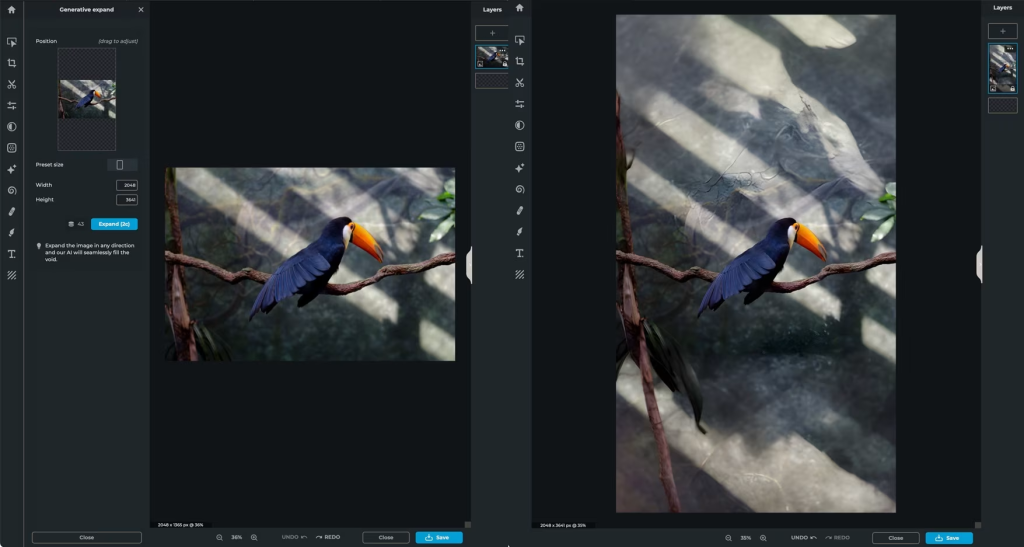
On the other hand, Pixlr X simplifies the editing experience for new users, focusing more on quick fixes and AI tools. It includes basic editing tools—cropping, color tweaks, and filters—plus some powerful AI options like generative fill and canvas expansion. These let you use text prompts to change or extend parts of your image. For example, converting a horizontal photo into a vertical one for Instagram Stories using AI-generated background fill works surprisingly well, even if it wouldn’t hold up under forensic analysis.
Pixlr X also includes tools for generating AI images, sharpening photos, removing backgrounds, masking subjects, and adding creative elements like stickers and text. While some features require credits, many are free to use.
One thing that works well is the shared project library between the two apps. You can start editing in Pixlr X and finish in Pixlr E, or vice versa. Just note that these are saved in your browser’s cache—so if you clear it, your work disappears unless you save your project in Pixlr’s .pxz format to your computer.
Pixlr Pricing: Both Pixlr E and X are free to use with ads. The premium plan unlocks more features and removes ads, starting at $2.49/month for individuals and going up to $16.99/month for teams of up to 5 users.
Best free Photoshop alternative for AI object removal
Fotor (Mac, Windows, iOS, Android, Web)
Fotor Pros:
- Best-in-class AI object removal—rivals Photoshop’s capabilities
- Robust set of photo and video editing tools in a single, streamlined app
Fotor Cons:
- Many basic editing functions, like color saturation and one-tap enhance, are paywalled
Fotor blends the advanced editing power of Photoshop with the simplicity and design-focused approach of tools like Canva. It’s a surprisingly versatile app that brings pro-level features within reach of casual users—especially when it comes to AI tools.
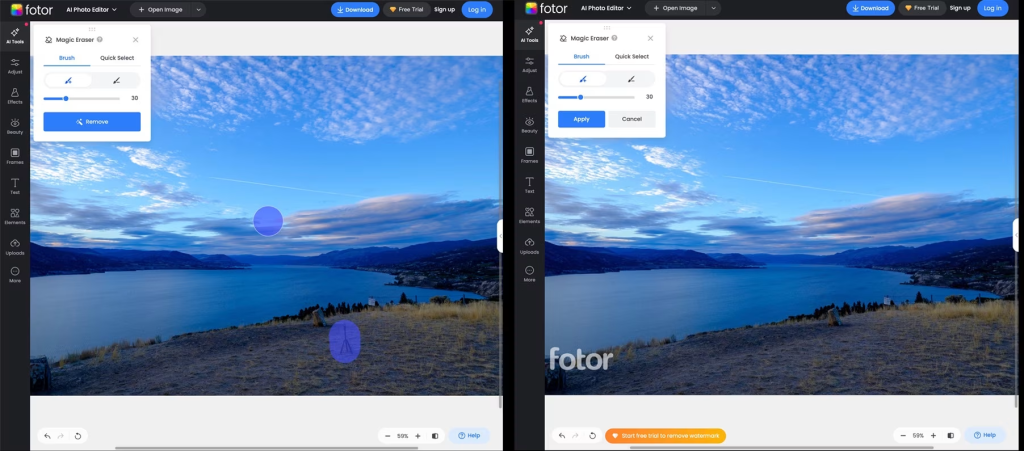
One standout feature is Magic Eraser, Fotor’s AI-powered object removal tool. Just swipe over the object you want gone—even loosely—and it disappears convincingly. Whether it’s an unwanted tripod or a passerby in the background, the results are impressively clean for a one-click fix.
Fotor also includes other high-quality AI tools like text/logo removal, background replacement, image expansion using generative AI, upscaling, sharpening, and portrait-specific enhancements (e.g., blemish removal, makeup filters, and smoothing effects). You can even generate realistic photos or video clips using text prompts, making it a solid tool for both image editing and content creation.
That said, one downside is how many basic editing tools—like adjusting saturation or using a one-tap auto-enhance—are locked behind a premium plan. These are features you’d expect for free, especially since they’re available in default mobile editing apps.
Despite that, Fotor stands out for the quality and ease of its AI features. If you’re doing a lot of quick, polished edits—especially portraits or social media content—Fotor offers great value. At $8.99/month, you get access to premium features and 100 AI credits, which should be plenty for most users. If you need access to Brand Kits or more AI credits, there’s a $19.99/month plan available as well.
Fotor Pricing: Free to use with basic tools. Premium plans start at $8.99/month for more features and AI credits, or $19.99/month for advanced tools, Brand Kit access, and higher usage limits.
Best free Photoshop alternative for using custom brushes
Photopea (Web)
Photopea Pros:
- Familiar Photoshop-style interface with professional-grade tools
- Access to a library of templates, plugins, and brushes with easy one-click installation
Photopea Cons:
- AI object replacement (Magic Replace) is only available on the premium plan
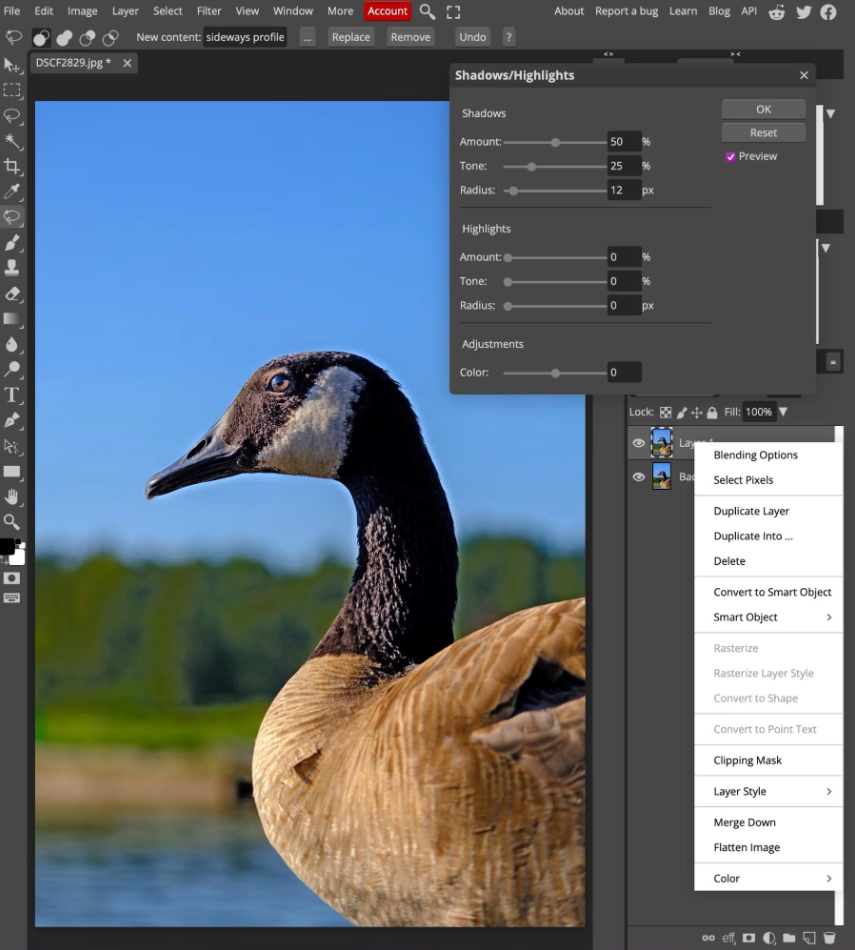
Photopea stands out as one of the most powerful free browser-based Photoshop alternatives—offering an interface that mirrors Adobe Photoshop almost exactly. With familiar tools, menus, and layout, it’s especially appealing to anyone with Photoshop experience.
What really sets Photopea apart is its wide file compatibility. You can open and edit not just image files (like JPG, PNG, or PSD), but also raw photo files, PDFs, Figma files, and more. Unlike Pixlr, Photopea also offers flexible cloud storage options. You can save your work to Peadrive (Photopea’s own cloud system), or link to Google Drive, Dropbox, or OneDrive. Plus, you can export your work as a PSD file, making it easy to switch between Photopea and Adobe Photoshop as needed.
If you’re someone who uses custom brushes in Photoshop, Photopea might be your only true free alternative. It supports ABR brush files, letting you import and use Photoshop brushes directly—something none of the other free editors on this list currently support. On top of that, you can work with Smart Objects, vector shapes, and paths, making it suitable for both photo editing and design tasks.
The great news? All the core editing features are available in the free plan. You can do professional-level editing—layers, masks, adjustment layers, advanced selections—without paying a dime. However, AI-powered tools like Magic Replace (Photopea’s version of Photoshop’s Generative Fill) and unlimited background removal require a premium subscription. That said, free users still get one AI background removal per day, which is generous for casual use.
Photopea also includes a template and plugin library, with mockups, patterns, actions, and more, which can all be installed with a single click. These assets add tons of flexibility, especially for designers and content creators who want fast, high-quality results.
Photopea Pricing: Free with ads and daily AI limits; $8/month removes ads and unlocks unlimited AI tools.
Best free photo editing app for product photos and social media
Photoroom (iOS, Android, Web)
Photoroom Pros:
- Batch processing saves significant time when creating product photos
- High-quality background removal and swapping for polished, professional product images
Photoroom Cons:
- The free version offers limited background swap options
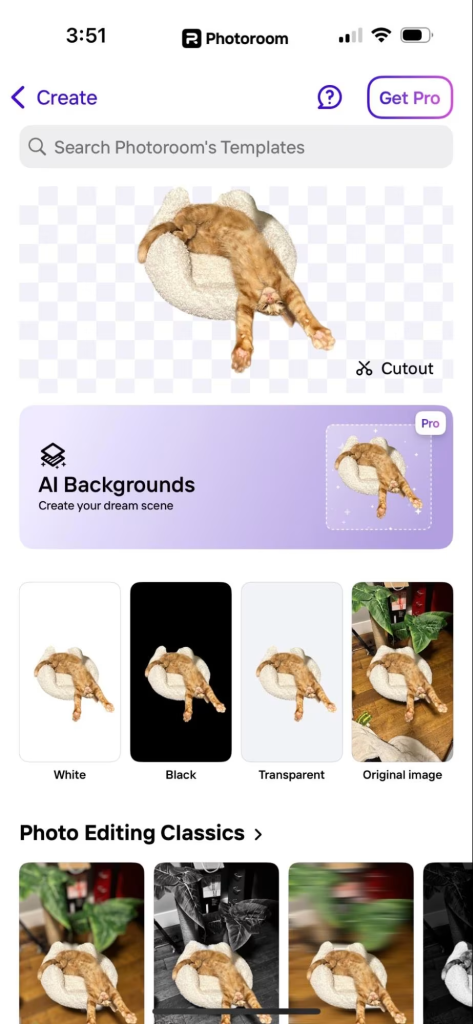
If you’re selling products online, Photoroom is a must-have tool. While its background removal and swapping features can be used creatively for various projects, Photoroom truly shines when it comes to eCommerce product photography and social media content creation.
The app offers plenty of retailer-friendly features, including themed templates for holidays and promotions, plus automatic resizing for major social platforms. It also caters directly to sellers by supporting formats and mockups for popular marketplaces like Etsy, eBay, Poshmark, Amazon, Shopify, and more.
One of the standout features is the instant background swap. Upload a product photo, and Photoroom quickly detects and removes the background in under a second. You can then replace it with any flatlay or scene background from their library, giving your product shots a fresh, professional look in no time.
This flexibility lets you create multiple versions of the same photo effortlessly. For example, you could save one image with a clean white background for Amazon, another with a styled flatlay for your website, and a third integrated into a social media graphic—all with just a few clicks.
To boost productivity further, Photoroom’s web app supports batch editing of up to 20 photos at once. You can also save your own editing templates on both web and mobile, making repeated workflows quicker and easier.
For retailers, Photoroom makes it simple to craft grid posts showcasing color options, collages for creative displays, and marketing graphics using a wide range of fonts and design elements.
While Photoroom isn’t a full-fledged photo editor focused on tweaks like exposure or color correction (though it does offer some basic adjustments), it serves as a specialized Photoshop alternative geared toward anyone who needs fast, polished product photos or social media content.
For even more automation and time savings, Photoroom integrates with Globaled Tools, letting you automatically remove backgrounds from photos saved to specific folders or records. There are plenty of ready-to-use workflows available to help you get started quickly.
Best free photo editing app for artists and illustrators
Krita (Windows, Mac, Linux)
Krita Pros:
- Extensive, advanced brush library designed for artists
- Completely free and open source
Krita Cons:
- Photo editing workflow feels a bit clunky compared to other apps
Though Photoshop has been the industry standard for over 30 years, Krita is no newcomer—it’s been around for about 25 years and has built a strong reputation, especially among artists who prefer a native app over browser-based tools. Krita is 100% free and open source, which makes it a fantastic option for those looking to avoid subscription fees.
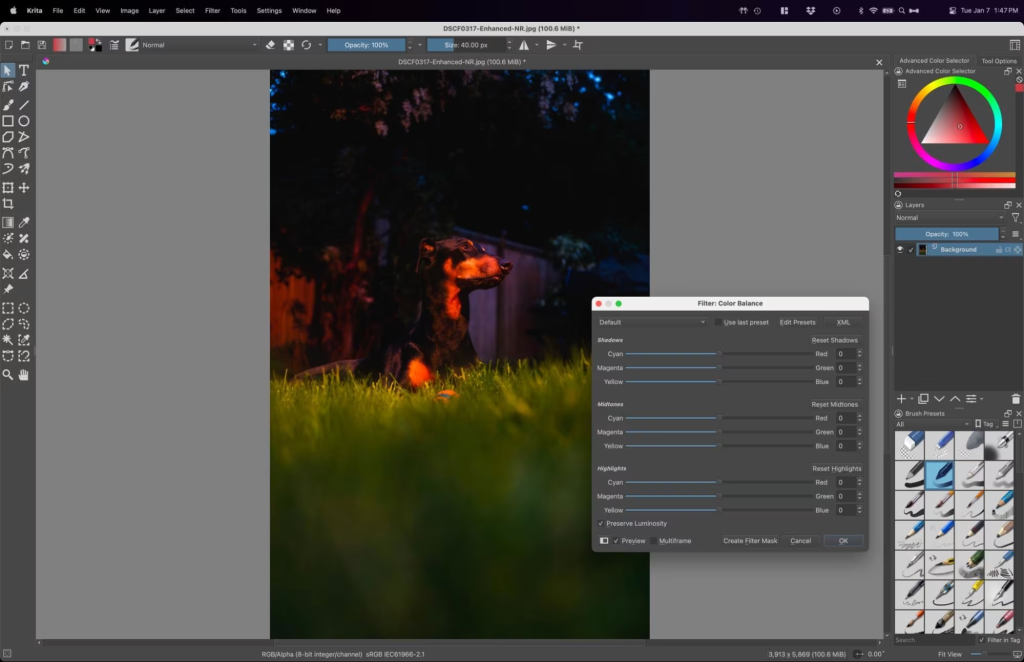
Krita’s interface is primarily tailored for artists and illustrators creating original artwork. You can certainly edit photos in Krita, but the process isn’t as straightforward as in other editors since many color adjustment tools are tucked away in the Filter > Adjust menu. Still, Krita shines with its noise reduction filter, which delivers excellent results comparable to Photoshop—just keep the intensity below 25% for the most natural effect.
For creative professionals, Krita offers everything needed: from fluid, realistic sketching and painting brushes to powerful masking, advanced selections, path drawing, multiple workspace setups (including animation and VFX), and support for both raster and vector artwork. I appreciate Krita’s art-focused layout; brushes and tool options are conveniently displayed in a grid at the bottom right, making tool switching smooth and fast.
While Krita doesn’t include one-click AI tools like background removal, it compensates with unique features such as the ability to script your own automation in Python. It also supports opening and saving PSD files, making it easy to switch between Photoshop and Krita depending on your workflow.
When paired with a drawing tablet, Krita becomes a robust digital painting app that’s ready for professional use. Overall, Krita is better suited for artists than photographers, but it still handles photo and graphic editing tasks when needed. Best of all, it’s completely free and open source.
Krita Pricing: Free
Best free Photoshop alternative for RAW photo editing
PhotoScape X (Windows, Mac)
PhotoScape X Pros:
- Powerful, professional-grade photo editing for all formats, including RAW
- Fast and efficient batch editing capabilities
PhotoScape X Cons:
- Some essential tools for pros, like curves and lens correction, are locked behind the Pro version
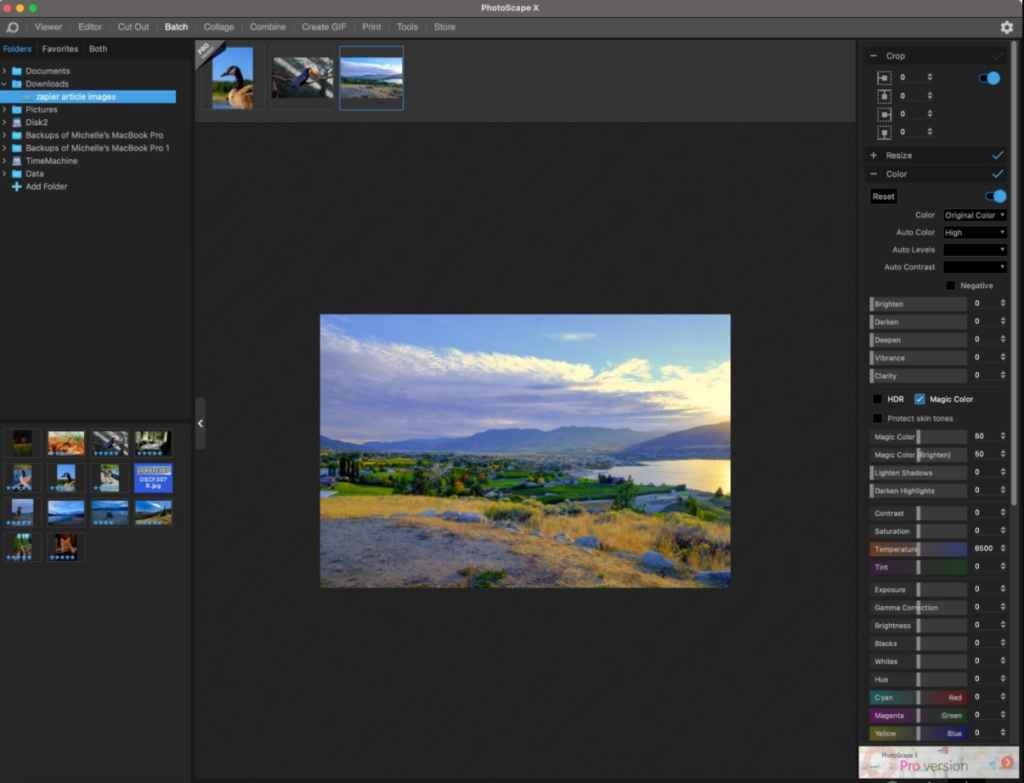
PhotoScape X is a solid Photoshop alternative, especially tailored for photographers who work with RAW files. It strikes a great balance between Photoshop and Lightroom in terms of features and user experience. The workspace menu at the top makes it easy to switch between photo viewing, single photo editing, batch editing, print optimization, background removal, and even GIF creation.
While it supports adding graphics, stickers, and text, PhotoScape X really shines with its powerful RAW editing tools. It covers all the bases photographers need: color correction, cropping, chromatic aberration removal, skin retouching, noise reduction, and more. The interface is designed for professional workflows yet remains approachable for beginners.
The main drawback is that some standard editing tools—like curves, levels, black and white conversion, and saturation adjustments—are only available in the paid Pro version. For those who need these features, the one-time $49.99 fee is a fair deal compared to Photoshop’s subscription model.
I particularly liked the Magic Color one-click auto-edit feature, which enhances saturation and shadows similarly to Photoshop and Lightroom’s auto color tools. It’s bold, maybe a bit intense for some, but perfect if you love vibrant, punchy colors.
Batch editing is also a strong point, allowing quick, uniform adjustments across multiple photos, though you can’t customize edits per image within the batch.
PhotoScape X doesn’t offer cutting-edge generative AI, but it includes useful “quiet AI” features like accurate auto-color, auto-levels, and HDR conversion—subtle but time-saving tools that help photographers streamline their workflow.
PhotoScape X Pricing: Free; Pro version with extra features available for a one-time payment of $49.99
Best free Photoshop alternative for pro-level AI effects
MyEdit (Web)
MyEdit Pros:
- AI tools are incredibly easy to use and produce realistic, high-quality results
- The only free Photoshop alternative offering forever-free AI tools with daily refreshing credits
MyEdit Cons:
- The daily limit of three free AI credits and one watermark-free download may be too restrictive for frequent users (though credit packs are available without requiring a subscription, which is great for casual users)
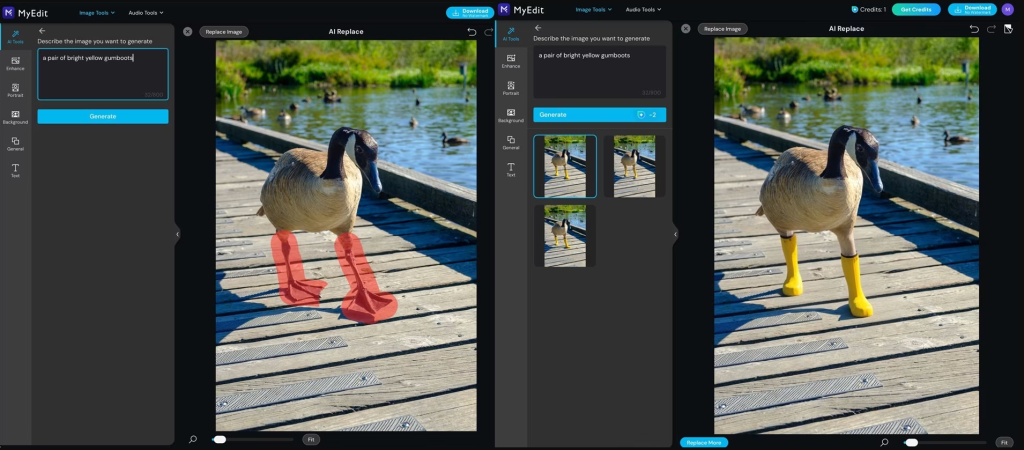
MyEdit really shines as an easy-to-use AI-powered editor that delivers impressive results completely free. For instance, adding charming yellow Paddington Bear boots to a Canada goose took just a few clicks and under two minutes. Whether this kind of AI creativity is good for society or just a fun distraction is up for debate, but it’s definitely enjoyable.
You can design using your own photos, add graphics and text, or generate social media templates with AI text prompts. However, MyEdit’s standout features are AI-driven, including generative expansion and fill, text-to-image generation, upscaling, background removal, and product photo scene creation.
Many other apps hide these AI features behind paywalls, but MyEdit offers three free AI credits and one watermark-free download daily. Unlike time-limited trials, this means you can get professional AI results indefinitely for free—ideal if you only need AI occasionally or don’t mind pacing your use.
For content creators, MyEdit also includes audio editing tools like text-to-speech for YouTube voiceovers, sound effect creation, and audio enhancement. Overall, it’s a solid collection of powerful, free AI tools designed to support modern photo editing and content creation workflows.
MyEdit Pricing: Free with 3 AI credits daily; premium plans from $10 to $18/month for extra AI credits.
Which Free Photoshop Alternative Should You Use?
Choosing the right free Photoshop alternative really depends on what you need most. Are you looking for generative AI to create graphics and photorealistic scenes from scratch? Or do you require pro-level noise reduction and color correction tools for your photography? Maybe you want ready-made templates that you can easily customize for social media or your website?
Since these options are all free to try, feel free to experiment with the ones that seem to match your needs until you find the perfect fit.
There are plenty more free or affordable Photoshop alternatives that didn’t make this list but are worth checking out, especially for specific use cases:
- Adobe Express — Great for quick, easy social media graphics, especially if you’re already a Creative Cloud subscriber
- Sumopaint and Sumophoto — An affordable Creative Cloud alternative offering photo, video, audio, and more for just $4/month
- remove.bg — A simple, free tool for background removal
- Affinity Photo 2 — A powerful Photoshop alternative available as a one-time purchase
- Inkscape — Free software for vector graphic design
- MediBang Paint — Perfect for comic book illustration and digital painting